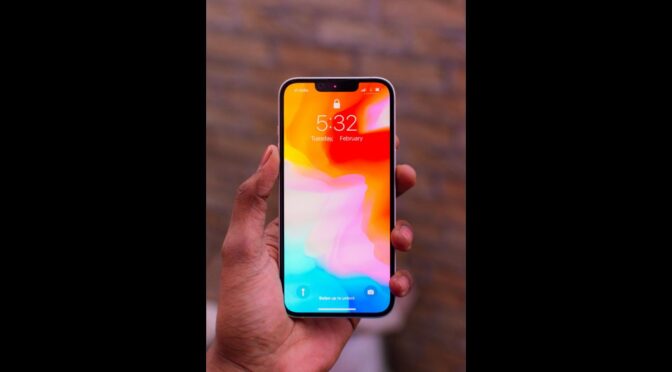
The “Storage Almost Full” warning has a way of appearing at the worst possible moment, usually right as you’re trying to capture a photo you’ll actually want to keep. The good news is that clearing meaningful space on an iPhone rarely means deleting anything you care about. It usually just means finding the handful of things quietly eating up gigabytes in the background.
Here’s a practical, step-by-step way to see exactly what’s taking up room and clear it out fast, without losing photos, messages, or apps you actually use.

Check What’s Actually Using Your Storage
Before deleting anything, see where the space is really going. Open Settings, then General, then iPhone Storage. iOS shows a color-coded bar broken down by category, apps, photos, media, and system data, along with recommendations tailored to your phone.
Start with the Biggest Wins
Offload Unused Apps
Apps you haven’t opened in months are one of the easiest places to recover space. Under iPhone Storage, tap “Offload Unused Apps” to let iOS automatically remove apps you no longer use while keeping their documents and data, so reinstalling later restores everything instantly.
Review Large Attachments in Messages
Years of photos and videos sent through Messages add up quietly. In iPhone Storage, tap Messages to see exactly how much space attachments are using, and clear out the ones you no longer need directly from that screen.
Clear Safari’s Cache
Website data and cached files can accumulate over time. Go to Settings, then Safari, then Clear History and Website Data. This won’t delete your bookmarks, but it will sign you out of most sites.
Take Control of Your Photo Library
Photos and videos are usually the single biggest storage category on any iPhone, and also the easiest to manage without losing anything important.
- Turn on iCloud Photos: Settings, then your name, then iCloud, then Photos. This stores your full-resolution library in iCloud and keeps space-saving versions on the device.
- Delete duplicate and similar photos: The Photos app’s “Duplicates” album (under Utilities) surfaces exact copies automatically.
- Empty Recently Deleted: Deleted photos linger for 30 days by default. Go to Albums, then Recently Deleted, then Select, then Delete All to reclaim that space immediately.
- Trim long videos: 4K video at high frame rates consumes storage fast. Consider recording in 1080p if you don’t need the extra resolution.

Quick Reference: Where Space Usually Hides
| Storage Hog | Where to Check | Fix |
|---|---|---|
| Unused apps | Settings > General > iPhone Storage | Offload or delete |
| Message attachments | Settings > General > iPhone Storage > Messages | Review and delete large files |
| Duplicate photos | Photos > Utilities > Duplicates | Merge duplicates |
| Recently deleted photos | Photos > Albums > Recently Deleted | Empty the album |
| Podcast or music downloads | Settings > General > iPhone Storage | Remove downloaded episodes |
Move Files Off Your Phone Entirely
If you’re still tight on space after clearing the obvious culprits, moving files elsewhere frees up room without deleting anything permanently. iCloud, Google Photos, and a simple backup to a computer all work well for older photos and videos you don’t need immediate access to. This is especially useful if you’re also trying to preserve space for iPhone camera shots at full resolution rather than switching to a lower-quality setting to save space.
Prevent the Problem From Coming Back
A few small settings changes stop storage from filling up again so quickly.
- Turn on “Optimize iPhone Storage” under Photos settings so full-resolution originals live in iCloud while space-saving versions stay on your device.
- Set Messages to automatically delete old conversations after one year, under Settings, then Messages, then Keep Messages.
- Periodically review the App Store’s auto-download settings so app updates don’t silently consume space overnight.
If you’re also keeping an eye on your phone’s overall health, it’s worth checking your battery health at the same time, since both settings live in similar areas of the Settings app and take only a minute to review together.
Frequently Asked Questions
Will offloading an app delete my saved data?
No. Offloading removes the app itself but keeps its documents and data, so reinstalling the app restores everything exactly as it was.
Does iCloud Photos actually free up space?
Yes, when “Optimize iPhone Storage” is enabled. Full-resolution originals move to iCloud while smaller, space-saving versions stay on your device.
Why does my storage fill up again after I clear it?
Cached data, new photos, and app updates accumulate continuously. Reviewing iPhone Storage every few months keeps things under control before it becomes urgent.
Is it safe to delete system data?
You generally can’t delete “System Data” directly, and much of it clears itself after a restart. If it seems unusually large, restarting your iPhone often helps.
Summary
Most iPhone storage problems come down to a small number of repeat offenders: unused apps, forgotten message attachments, and a photo library that’s never been cleaned out. Working through the iPhone Storage screen methodically, rather than deleting things at random, clears space fast while keeping everything you actually want.
Conclusion
The next time you see that storage warning, resist the urge to panic-delete random photos. Spend two minutes in Settings, then General, then iPhone Storage, and you’ll almost always find gigabytes of space in apps and files you forgot you had.