Note: Apple has not announced the iPhone 18. This article rounds up rumors, leaks, and educated guesses from around the web, and none of it should be treated as confirmed information.
With the current iPhone generation still fresh, attention has already started shifting toward what comes next. Between supply-chain reports, patent filings, and the usual wave of speculation, a rough picture of the iPhone 18 is starting to form. Here is what is being said about the release date, pricing, and design, along with how much weight to give each claim.
Note: Apple has not confirmed any iPhone 18 details. Everything below is based on leaks, supply-chain chatter, and rumors circulating online, and should be treated as speculation rather than fact.
Every summer, long before Apple says a word, the rumor mill starts churning out claims about what the next iPhone will look like. This year, most of the chatter is focused on the camera system, with leakers suggesting some of the biggest changes in several generations could be heading to the iPhone 18 Pro lineup. Here is a roundup of what is being claimed so far, and how much of it is worth taking seriously.
Most iPhone owners have never opened the Accessibility menu, yet it quietly holds some of the most useful features Apple has ever built. These tools were originally designed for people with visual, hearing, or motor impairments, but many of them have quietly become favorites among everyday users who simply want more control over how their phone behaves.
Whether you want to tap the back of your phone to launch an app, get a flashing light instead of a ringtone, or have your iPhone read a webpage aloud while you cook dinner, there is likely a built-in feature that already does it. This guide walks through the accessibility tools worth turning on, even if you do not consider yourself to have any specific accessibility need.
The “Storage Almost Full” warning has a way of appearing at the worst possible moment, usually right as you’re trying to capture a photo you’ll actually want to keep. The good news is that clearing meaningful space on an iPhone rarely means deleting anything you care about. It usually just means finding the handful of things quietly eating up gigabytes in the background.
Here’s a practical, step-by-step way to see exactly what’s taking up room and clear it out fast, without losing photos, messages, or apps you actually use.
Every iPhone in your pocket is capable of photos that rival a dedicated camera, yet most people only ever tap the shutter and hope for the best. The truth is that the hardware has been ready for years — what usually holds a photo back is a handful of small habits around composition, light, and settings. Learn those habits and the same iPhone that takes a flat, forgettable snapshot can just as easily produce a photo you would be proud to print.
This guide walks through the practical, no-nonsense techniques that make the biggest visible difference, from framing a shot before you tap the shutter to knowing when Portrait mode helps and when it gets in the way.
Your iPhone holds more personal information than most people realize: banking apps, private messages, location history, health data, and years of photos. iOS includes strong privacy and security tools by default, but several of the most important protections are not switched on automatically and need a few minutes of setup.
This guide walks through the privacy and security settings worth checking today, in order of importance, so you can close the most common gaps first.
Why iPhone Privacy Settings Matter More Than You Think
Apple builds strong security into iOS, but privacy is a shared responsibility between the operating system and how you configure it. A lost or stolen phone, a weak passcode, or an app with excessive permissions can undo much of that built-in protection. The good news is that most of the fixes below take less than a minute each.
Essential Settings to Enable Right Away
Use a Strong Passcode with Face ID or Touch ID
A six-digit passcode is the current default, but switching to a longer alphanumeric passcode under Settings, then Face ID & Passcode, meaningfully increases how long it would take someone to guess it. Face ID or Touch ID should also be enabled so you rarely need to type the passcode in public.
Turn On Two-Factor Authentication for Your Apple ID
Two-factor authentication means a stolen password alone is not enough to access your Apple ID. It can be checked and enabled under Settings, your name at the top, then Sign-In & Security. Once it is on, any new sign-in attempt requires a verification code sent to a trusted device.
Enable Find My iPhone
Find My iPhone, found in the same Sign-In & Security section, allows you to locate, lock, or erase your device remotely if it is lost or stolen. It also activates Activation Lock, which prevents anyone else from using your iPhone even after a factory reset.
Review App Tracking Transparency
Under Settings, Privacy & Security, then Tracking, you can see which apps have asked to track your activity across other apps and websites, and revoke that permission for any app you do not fully trust.
Limit Personalized Advertising
In the same Privacy & Security menu, turning off Apple Advertising personalization reduces how much of your on-device activity is used to target ads, without affecting how apps otherwise function.
Audit App Permissions Periodically
Location Services, microphone, camera, and contacts access are all listed individually under Privacy & Security. It is worth reviewing this list every few months, since apps you installed once for a single use often retain permissions long after you stop using them.
Lock Screen Privacy Settings
Setting
Why It Matters
Show Previews
Set to “When Unlocked” so message content is not visible on a locked screen.
Today View on Lock Screen
Disable if it exposes personal widgets to anyone holding the phone.
Control Center Access
Restrict access from the lock screen to prevent toggling settings without unlocking.
USB Accessories
Require a passcode to connect accessories when the phone has been locked for over an hour.
Network and Browsing Privacy
Safari’s Privacy & Security section includes Intelligent Tracking Prevention, which is on by default and limits how advertisers can follow you across websites. It is also worth enabling Private Wi-Fi Address for each network under Settings, then Wi-Fi, so your iPhone uses a randomized identifier instead of broadcasting its real hardware address to every network it joins.
Keeping Your iPhone Updated
Security patches are delivered through regular iOS updates, and enabling automatic updates under Settings, General, then Software Update ensures these fixes are installed promptly rather than delayed for weeks. Many real-world attacks specifically target devices running outdated software, so this single setting closes a meaningful amount of risk on its own.
Common Privacy Mistakes to Avoid
Reusing the same passcode across your iPhone, Apple ID, and other accounts.
Ignoring software update prompts for weeks or months at a time.
Granting “Always” location access to apps that only need it while in use.
Leaving message previews visible on the lock screen in shared or public spaces.
Connecting to open public Wi-Fi networks without reviewing what data an app transmits over them.
Frequently Asked Questions
Does enabling these settings slow down my iPhone?
No. Privacy and security settings run in the background with negligible impact on performance or battery life.
Is Face ID actually more secure than a passcode?
Face ID is convenient and resistant to casual snooping, but it should be paired with a strong passcode rather than replacing it, since a passcode is still required as a fallback and after restarts.
What should I do if I think my Apple ID was compromised?
Change your Apple ID password immediately, review trusted devices under Sign-In & Security, and check for unfamiliar sign-in locations. Apple’s official Apple ID security guide walks through the full recovery process.
Do these settings apply the same way on an older iPhone?
The core settings are available on any iPhone still receiving iOS updates, though menu names and exact locations have shifted slightly across iOS versions.
Should I turn off location services entirely?
Not necessarily. Location Services power useful features like Find My and Maps. It is generally more useful to review permissions app by app rather than disabling location access system-wide.
Summary
Most of the meaningful privacy and security gains on an iPhone come from a short list of settings: a strong passcode paired with Face ID or Touch ID, two-factor authentication on your Apple ID, Find My iPhone turned on, careful review of app tracking and permissions, and keeping iOS updated automatically. None of these take long to configure, and together they close the majority of the realistic risks an everyday iPhone user actually faces. If you are also trying to get more life out of your current phone, it is worth pairing these steps with a look at iPhone battery health and care, since security and longevity often go hand in hand.
Few smartphone topics spark as much quiet worry as battery health. You charge your iPhone every night, watch the percentage climb to 100, and yet at some point — usually around the eighteen-month to two-year mark — the phone seems to drain faster than it used to. If that sounds familiar, you’re not imagining things, and there’s a lot you can do about it. This guide explains what “battery health” actually measures, how to check it properly, why batteries age the way they do, and which habits genuinely extend a battery’s usable life.
What Is iPhone Battery Health, Really?
Every iPhone battery is a lithium-ion cell, and like all lithium-ion batteries, its capacity to hold a charge slowly shrinks the more it’s used. Apple’s Battery Health feature estimates your battery’s current maximum capacity as a percentage of its capacity when the phone was new. A battery sitting at 100% still behaves like a brand-new battery, while one sitting at 80% can hold roughly 80% of the charge it could when you first unboxed the phone.
This isn’t unique to Apple. Every lithium-ion battery, whether it’s in a phone, a laptop, or an electric car, follows the same basic chemistry and the same gradual decline. What makes the iPhone’s tool useful is that it gives you a concrete number instead of leaving you to guess based on how the phone “feels.”
How to Check Your iPhone’s Battery Health
Checking your battery health takes less than a minute:
Open the Settings app.
Tap Battery.
Tap Battery Health & Charging.
Look at the Maximum Capacity percentage near the top.
On the same screen, you’ll also see whether Peak Performance Capability is active, and a toggle for Optimized Battery Charging, which is discussed further down.
What the Percentage Actually Means
A lot of people see a number like 91% and aren’t sure whether to be worried. Here’s a general breakdown of what different ranges typically indicate in day-to-day use:
Maximum Capacity
What It Usually Means
95–100%
Battery is performing like new; no noticeable difference in daily use.
85–94%
Mild, normal wear; most people won’t notice a meaningful difference.
80–84%
Apple’s threshold for “normal” wear; battery life is shorter but usually still workable.
Below 80%
Noticeable capacity loss; heavier users often consider a replacement here.
Apple considers a battery to have significantly degraded once it drops below 80% of its original capacity, which is also the point at which a battery replacement, in or out of warranty, tends to make the most practical sense.
Why Battery Health Declines Over Time
Battery wear isn’t random. It’s driven by a handful of predictable factors.
Charge Cycles
A “charge cycle” is completed every time you use an amount of battery equal to 100% of its capacity, whether that happens in one full charge or is spread across several partial charges. Apple designs iPhone batteries to retain up to 80% of their original capacity at around 500 complete charge cycles under typical use. Someone who charges their phone in small top-ups throughout the day accumulates cycles at roughly the same rate as someone who charges once overnight — what matters is total battery usage, not how often you plug in.
Heat Exposure
Heat is the single fastest way to age a lithium-ion battery. Leaving an iPhone on a car dashboard in summer, charging it under a pillow, or using a case that traps heat while gaming or navigating can accelerate capacity loss far more than normal daily charging ever would.
Age of the Battery
Even a phone that’s rarely used will see some capacity loss simply from age, as the chemical compounds inside the battery degrade slowly over time regardless of use. This is why a two-year-old iPhone kept in a drawer can still show some battery wear when it’s finally switched on again.
How to Preserve Your iPhone’s Battery Health
None of these habits will stop aging entirely — that’s just chemistry — but together they can meaningfully slow it down.
Keep your iPhone in a moderate temperature range. Apple recommends operating between 32°F and 95°F (0°C to 35°C), and avoiding storage above 113°F (45°C).
Avoid letting the battery sit at 0% for long periods. Deep discharges followed by long periods of no charging are hard on lithium-ion cells.
Remove thick cases before charging quickly or gaming for long periods, since built-up heat during those activities is worse than the heat from charging alone.
Use Optimized Battery Charging so your iPhone learns your daily routine and delays charging past 80% until shortly before you typically wake up.
Update iOS regularly, since Apple periodically ships power-management improvements alongside other software updates.
Optimized Battery Charging
This feature, found in Battery Health & Charging settings, reduces the amount of time your iPhone spends sitting at 100%, which is one of the more stressful states for a lithium-ion cell. It works best if you keep a fairly consistent charging routine, such as charging overnight.
Charging Habits That Help
Contrary to old myths, you don’t need to run your iPhone all the way down to 0% before charging, and you don’t need to unplug it the instant it hits 100%. Partial charges throughout the day are perfectly fine and, in fact, generally gentler on the battery than repeated full discharges.
Signs Your Battery Needs Replacing
Beyond the Maximum Capacity number, watch for:
Unexpected shutdowns even when the battery shows charge remaining.
A battery percentage that jumps suddenly, for example from 30% straight to 5%.
Noticeable slowdowns that improve after a charge, a sign of Peak Performance Capability throttling.
A phone that feels warm even during light use.
Visible swelling around the screen or back glass — if you notice this, stop using the phone and have it serviced immediately.
How to Replace Your iPhone Battery
If your Maximum Capacity has dropped below 80% and you’re noticing real-world effects, a battery replacement is usually far cheaper than a new phone and restores full performance. Apple offers battery replacements at Apple Stores and Apple Authorized Service Providers, and iPhones under AppleCare+ typically qualify for a replacement at no extra cost once the battery falls to 80% or below. You can check current pricing and options directly on Apple’s official battery page.
Does Battery Health Affect Performance?
Yes, indirectly. When a battery ages enough that it can no longer deliver peak power reliably, iOS can apply Peak Performance Capability management to prevent unexpected shutdowns, which may slightly reduce performance during demanding tasks. This isn’t Apple trying to slow down your phone artificially — it’s a safeguard that only activates on batteries that have already degraded, and you can see whether it’s active on the Battery Health & Charging screen. If you’re weighing whether to keep your current phone or look at what’s coming next, it’s worth comparing against Apple’s newer lineup, including the battery and camera changes expected for the iPhone 18 Pro Max.
Frequently Asked Questions
Is 80% battery health bad?
Not necessarily. It’s Apple’s threshold for “normal” wear, and plenty of people continue using their iPhone comfortably below that number. It simply means the battery holds less charge than it did when new.
Does fast charging damage battery health?
Occasional fast charging has a minimal impact. The bigger factor is heat generated during charging, which is why charging in a cooler environment matters more than charging speed alone.
Should I turn my iPhone off overnight to save the battery?
It’s not necessary. Optimized Battery Charging already manages overnight charging intelligently, and turning the phone off regularly offers negligible additional benefit.
Can I replace my iPhone battery myself?
Apple does offer a self-service repair program, but for most people a certified technician is the safer and often more cost-effective route, since it preserves water resistance seals and warranty coverage.
Does battery health reset after a replacement?
Yes. A genuine replacement battery returns Maximum Capacity to 100%, and Peak Performance Capability management resets accordingly.
Summary
iPhone battery health is simply a running measure of how much capacity your battery has lost compared to when it was new, and some decline is unavoidable no matter how carefully you treat your phone. What is within your control is the pace of that decline: keeping your iPhone away from extreme heat, using Optimized Battery Charging, avoiding repeated deep discharges, and updating iOS regularly all help stretch a battery’s useful life. When Maximum Capacity drops below 80% and you notice it in daily use, a replacement is a straightforward and usually inexpensive way to make an older iPhone feel new again.
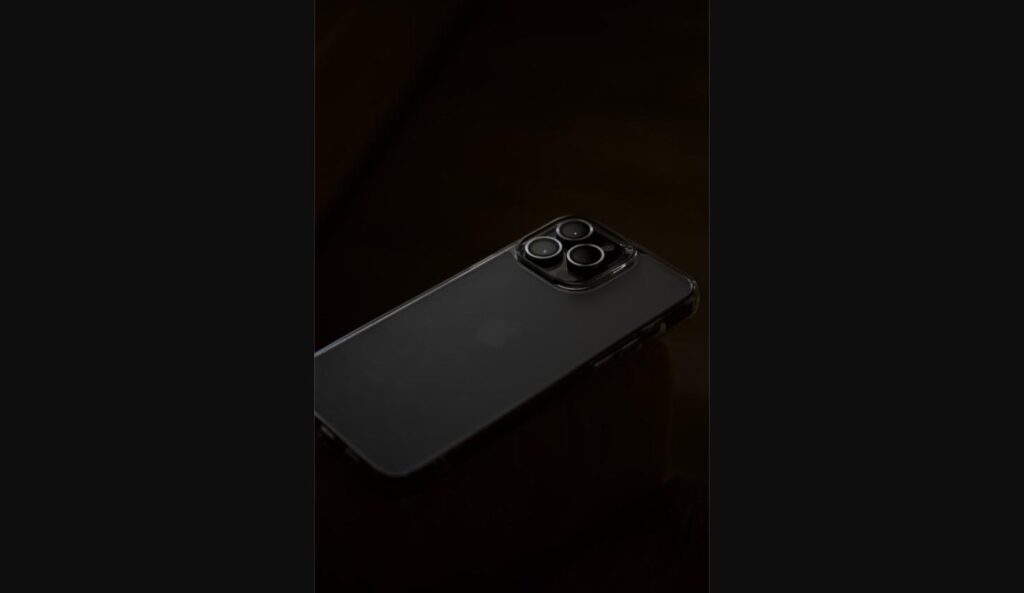
As anticipation builds for Apple’s next flagship lineup, leaks and supply chain reports are starting to paint a picture of what the iPhone 18 Pro Max could offer. Two areas getting the most attention so far are the camera system and battery life, both long-standing priorities for Pro Max buyers.
Camera System Rumors
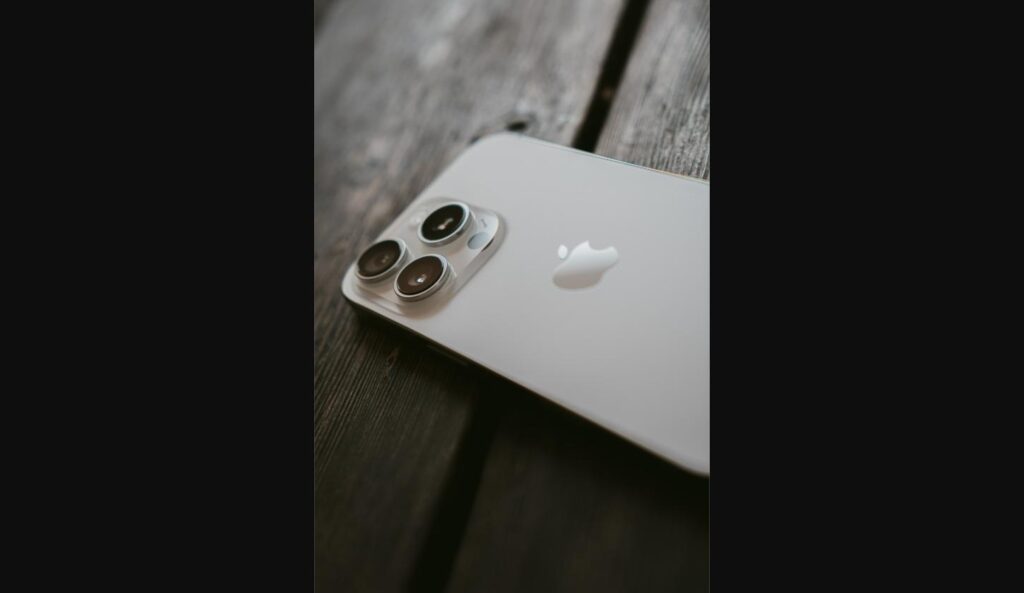
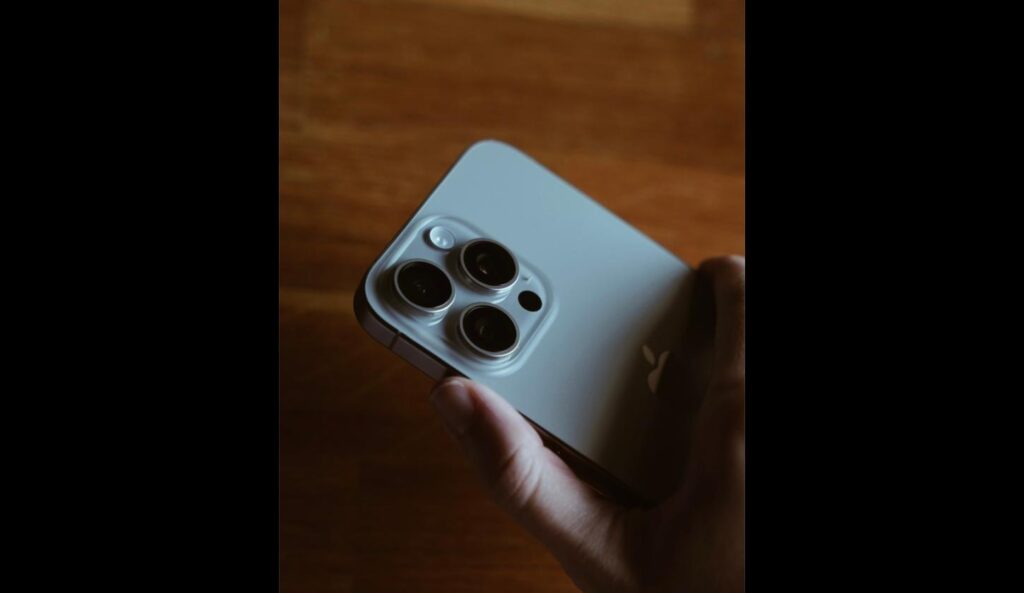
Early reports suggest Apple is working on an upgraded triple-lens rear camera array with improved low-light performance and a redesigned periscope zoom lens for sharper long-range shots. There is also talk of upgraded sensors across all three lenses, not just the primary one, which would mark a meaningful step up in ultra-wide and telephoto quality.
On the software side, rumors point to more advanced computational photography features, building on Apple’s recent investments in on-device image processing. Improved video stabilization and higher-resolution sensor crops for zoom shots are also said to be under consideration.
Battery Life Expectations
Battery life is another area where leakers expect real gains. A larger cell is rumored to be possible thanks to internal layout changes, and a more power-efficient chipset built on a smaller manufacturing process could stretch battery life noticeably compared to the iPhone 17 Pro Max.
If these rumors hold up, the iPhone 18 Pro Max could appeal strongly to photography enthusiasts and heavy users who have been asking for longer battery life for years. As always, these details are unconfirmed until Apple’s official announcement, so treat early leaks as a general direction rather than a final specification.
Rumored redesigned periscope zoom lens
Upgraded sensors across all three rear cameras
Larger battery cell rumored
More power-efficient chipset expected
All specifications mentioned are based on unofficial rumors and are subject to change until Apple’s official announcement.